
TLDR
- Need MTG proxies tonight: generate a PDF with MTGPrint, print at 100% scale, cut, then sleeve in front of a bulk common or basic land.
- Want the easiest “design + print” workflow: PrintMTG is one of the cleanest all-in-one options for custom MTG proxies, from decklist upload to finished cards.
- Want deep customization: Card Conjurer and Magic Set Editor are great if you like fiddling with frames, templates, and custom layouts.
- Want factory-feel results: pro services like PrintMTG, MakePlayingCards (MPC) + MPC Autofill, and QPMN can get you consistent cardstock and cutting without turning your weekend into an arts-and-crafts hostage situation.
- Avoid the classic mistake: test-print one page first. Everyone thinks they printed at the right size until they meet a sleeve.
- Need a full cube: Print a Cube has excellent budget options.
You’ve got three main paths to MTG proxies, and they all work. The only real difference is how much time you want to spend in the “printer settings, scissors, and regret” zone.
This guide breaks down the three routes (online tools, DIY home printing, and professional printing), plus a few sanity-saving rules so your proxies come out readable, shuffleable, and not mysteriously 97% scale.
The three ways to make MTG proxies (pick your level of effort)
Here’s the simple decision framework:
- Good (fastest): decklist to PDF to sleeves. Great for playtesting and “we’re drafting in an hour.”
- Better (custom): design custom cards, tokens, or alt-art versions using online creators, then print at home or send to a service.
- Best (closest to real deck handling): professional printing on playing-card stock with consistent cutting and finishing.
If you’re building a Cube, tuning Commander decks, or printing a gauntlet of test decks, “Best” starts to make sense quickly. Cutting 540 cards at home sounds heroic right up until your second podcast ends and you’re still cutting.
1) Design with online tools (the fun part)
If you’re making custom MTG proxies (new art, custom tokens, alters, funny commanders your group will groan at), start here.
Print MTG (all-in-one design + print)
PrintMTG is built around a simple idea: don’t make you glue together five tools just to get cards on the table. You can upload a decklist, search cards, or build custom card designs, then order prints in the same workflow. It’s especially good when your goal is “I want these to look clean in sleeves and arrive already cut.”
When this shines:
- You want custom cards and also want them printed professionally without exporting a dozen files.
- You’re printing lots (Cube, multiple Commander decks, test gauntlets).
- You care about readability and consistent feel more than tinkering with frame pixels.
MTG.cards (quick custom cards, low friction)
MTG.Design is a browser-based creator that works well on desktop or mobile. It’s great for getting an idea out of your head and into card form quickly, without installing anything or learning a complex interface.
When this shines:
- You want to mock up a card quickly.
- You don’t need maximum frame customization.
- You want something that is easy to use on basically any device.
Card Conjurer (deep customization, templates for days)
Card Conjurer is the “I want to adjust everything” option. It’s flexible, template-driven, and popular for frame experimentation and custom layouts. If you enjoy tinkering, you will have a great time. If you do not enjoy tinkering, you will briefly consider becoming a fruit farmer instead.
When this shines:
- You want lots of template control.
- You’re making custom treatments, showcase styles, or unusual layouts.
- You are comfortable with web tools that sometimes behave like web tools.
Magic Set Editor (desktop, batch-friendly)
Magic Set Editor (MSE) is old-school, but still useful, especially if you’re making a bunch of customs at once. It’s more “set building” than “single card perfection,” and it can be a solid scratchpad for large projects.
When this shines:
- You want to build a batch of custom cards quickly.
- You don’t mind using a desktop app.
- You’re doing a “custom set” style project.
MTGPrint (decklist to printable PDF)
MTGPrint is the speedrun option for getting a decklist into a printable PDF layout with features like crop marks and black corners. It’s not a card design studio, it’s a practical “print this list” tool.
When this shines:
- You already have a list and just need it in a printable sheet format.
- You’re doing the sleeve method and you care more about function than aesthetics.
- You want a fast, repeatable workflow.
2) DIY home printing (cheap, immediate, surprisingly serviceable)
Home printing is the best choice when your timeline is “today” and your budget is “please don’t.”
Materials that won’t feel like a napkin
You have two realistic home-print routes:
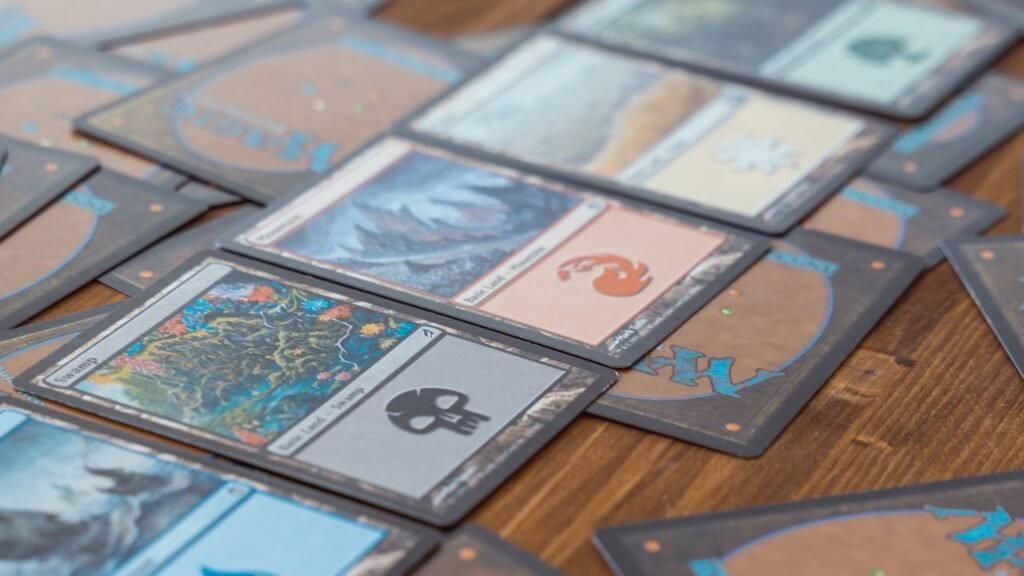
- Paper inserts (recommended): print on normal paper, cut, and sleeve in front of a bulk card for stiffness.
- Direct cardstock printing: print on heavier stock for a more standalone feel, but be ready for more printer drama (feeds, smears, color shifts).
If you go heavier: use something like matte presentation paper or heavier cardstock your printer can reliably feed. The exact “best” depends on your printer more than your dreams.
The one setting that matters more than all the others
Print at 100% scale.
Not “fit to page.” Not “shrink to printable area.” Not “I’m sure it’s fine.”
100%.
Then do a test print of one page and check sizing with:
- a real card in a sleeve, or
- a card sleeve itself, or
- a ruler (if you’re feeling old-fashioned and powerful).
A standard Magic card is roughly 63.5 mm x 88.9 mm (often rounded to 2.5″ x 3.5″ in casual conversation). If your prints are even slightly off, you’ll feel it when you try to sleeve and shuffle.
Assembly methods (from “works now” to “works nicer”)
1) The sleeve method (best value):
- Print the cards on paper.
- Cut them out.
- Sleeve each one in front of a bulk common or basic land.
This is the most forgiving method. It also solves the “my cardstock feels weird” problem because the bulk card provides the structure.
2) Direct print and cut (more effort, cleaner stack):
- Print on heavier stock.
- Cut carefully using a guillotine cutter or rotary trimmer.
- Round corners.
This can look great if your printer behaves and your cutting is consistent.
Finishing: rounding corners (optional, but it feels better)
Corner rounding is the difference between “home project” and “this actually shuffles.” A small corner rounder (often 2 to 3 mm radius) helps a ton.
If you print a lot, this is one of the rare hobby tools that actually earns its drawer space.
The “please don’t make these mistakes” checklist
Before you print 9 pages of proxies:
- Test print one page first.
- Confirm 100% scale.
- Make sure text is readable at arm’s length in sleeves.
- Use high-resolution images when possible (aim for at least ~300 DPI at print size).
- Keep your card backs consistent across the deck (custom backs are the lowest-drama option for casual play).
- Plan for double-faced cards (more on that below).
- Accept that your printer will try to betray you, then proceed anyway.
3) Professional printing services (when you want the “real deck” experience)
Home printing is great for quick testing. Pro printing is great when you want proxies that:
- feel consistent in hand,
- shuffle smoothly,
- look clean across a whole deck or Cube.
PrintMTG (strong balance of quality + workflow)
PrintMTG is a good fit when you want a streamlined process and care about consistent results. Their process details matter here because most “proxy printing” conversations get vague fast. PrintMTG is unusually specific about materials and finishing, including black-core stock and UV coating, which are the kinds of details that actually affect how a deck handles.
This is especially relevant for:
- Commander decks you play often
- Cub es (360 to 720 cards is where DIY starts to hurt)
- Playtesting gauntlets where consistency matters
MakePlayingCards (MPC) + MPC Autofill (powerful, more DIY)
MPC is a popular route for printing custom cards, and MPC Autofill exists to automate a big chunk of the prep workflow. This combo is great if you want control and don’t mind a more hands-on pipeline.
This is a good fit if:
- you like managing files and templates,
- you’re doing large orders,
- you want a flexible print vendor with a strong community workflow around it.
The tradeoff is that it can be more steps. The payoff is control.
QPMN (pro printing, different ecosystem)
QPMN positions itself around pro-grade cardstock options (including black-core weights) and print-on-demand workflows. If you’re comparing services, it’s another “factory feel” route that’s worth understanding, especially if you care about stock thickness and cutting consistency.
Important considerations (the stuff that saves you headaches)
Make proxies obviously proxies
For casual play, clarity is king. Use custom backs, a proxy label, or another clear marker so nobody has to squint and do courtroom cross-examination over your basic land. If you’re specifically wondering about event policies, PrintMTG has a Proxy Policy guide you can reference.
Resolution beats cleverness
If the art is pixelated or the text is fuzzy, it doesn’t matter how perfect your cutting is. Prioritize:
- sharp text
- clean symbols
- high-res sources
Double-faced cards (MDFCs, transform)
Pick one:
- Print both sides and sleeve with clear sleeves (annoying but accurate).
- Use checklist-style reminders or helper cards.
- Print the front only and keep the back available as a reference.
For Cube and Commander, the “front-only + reference” approach is often the least annoying.
Tokens and extras
If you’re proxying a deck, you usually want the support pieces too:
- key tokens
- emblems
- reminder cards (for MDFCs)
It’s not mandatory, but it removes friction at the table. And friction is the true final boss of casual Magic.
FAQs
What size should I print MTG proxies?
Use standard Magic card dimensions: roughly 63.5 mm x 88.9 mm. Always test-print one page at 100% scale before committing to a full deck.
What DPI do I need for clean-looking proxies?
Aim for 300 DPI or higher at final print size when possible, especially for text clarity. Lower can work in sleeves, but you’ll notice fuzzy rules text fast.
What is the easiest way to make proxies at home?
Use MTGPrint to generate a PDF, print at 100% scale, cut, then use the sleeve method with a bulk card behind each proxy.
What is the best option for a 540-card Cube?
Unless you truly love cutting paper rectangles, professional printing is usually the move for a 540-card Cube. Services like PrintMTG or Print a Cube can save a lot of time and produce more consistent handling.
Do I need custom card backs?
You don’t strictly need them for kitchen-table play, but custom backs reduce confusion and make the whole experience smoother. Consistency matters more than anything.