
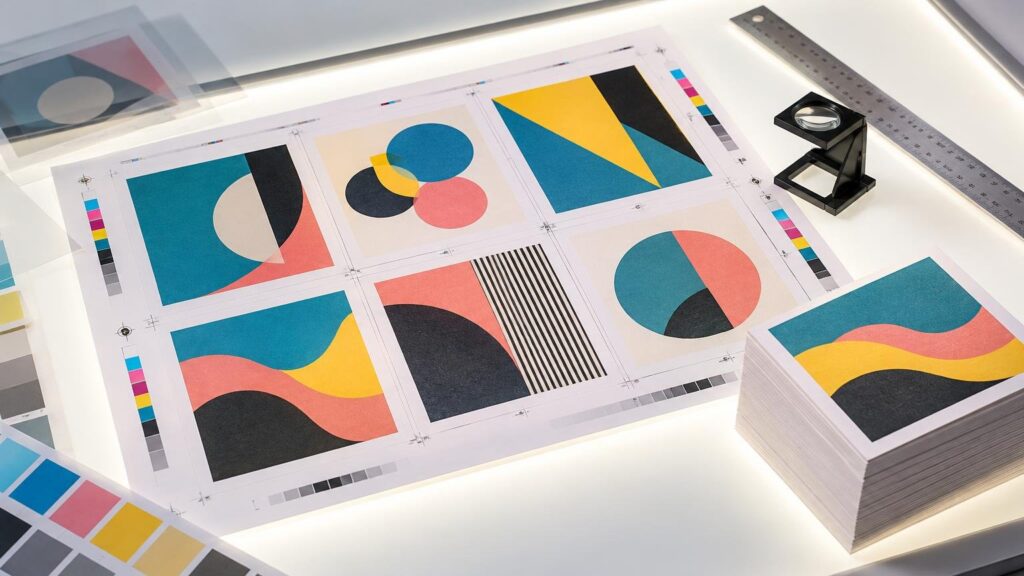
Prepress is the stage between creating artwork and running a printing press. It turns an approved design into production-ready data for a specific product, press, substrate, and finishing workflow. That can involve checking the file, managing color, adding bleed, imposing pages, creating traps, processing a proof, and rendering the job for plates or a digital press.
The practical point is simple: a file can look correct on a monitor and still fail in production. Prepress is where the printer identifies or controls problems that could produce white trim edges, substituted fonts, muddy images, incorrect dimensions, missing elements, or pages placed in the wrong order.
TLDR
Prepress prepares artwork for the actual conditions under which it will be printed and finished. Graphic design determines what the piece should look like; prepress determines whether that design can be reproduced correctly on the ordered size, stock, press, coating, cut, fold, or binding configuration. A strong prepress workflow reduces avoidable production risk, but it cannot make every screen color printable or make a digital proof reproduce the physical feel and sheen of paper.
Prepress is not the same as graphic design
Graphic design creates the visual communication: typography, photographs, illustrations, hierarchy, and composition. Prepress evaluates and adapts that artwork for a defined output condition.
The distinction matters when somebody describes a PDF as “print-ready.” Ready for which job? A file prepared for an uncoated postcard may need different color handling from one printed on coated stock. A booklet introduces page imposition and binding considerations that a flat flyer does not. A die-cut label needs cut-path and tolerance controls that a rectangular business card may not require. The ordered product—not the filename—defines readiness.
What happens during prepress?
The exact workflow changes with the printing method and product, but most commercial jobs pass through several related control points.
| Prepress operation | What it controls | Why the buyer should care |
|---|---|---|
| Preflight | Dimensions, fonts, images, color setup, bleed, and file structure | Catches file conditions that could stop production or change the result |
| Color management | Translation of supplied color values into the intended output condition | Helps make color conversion predictable within the press and substrate gamut |
| Trapping | Small overlaps between adjoining colors where needed | Reduces visible gaps caused by registration variation |
| Imposition | Placement of pages or repeated pieces on a press sheet | Connects artwork to cutting, folding, binding, and efficient sheet use |
| Proofing | A review representation of content and production setup | Creates an approval checkpoint before output |
| RIP processing | Rendering pages into output-specific raster data | Produces the image data required by a digital press, proofing device, or plate system |
1. Preflight checks the supplied file
Preflight is the technical inspection. Common checks include the document size, image resolution, color setup, fonts, bleed, trim, and consistency with the ordered product. Adobe’s print-ready PDF guidance also calls for checking linked assets, fonts, margins, bleed, print colors, and preflight results before PDF export. These checks matter because a valid PDF is not necessarily a valid production file.
2. Color is translated for an output condition
Prepress color management determines how supplied color values will be interpreted by the production system. Depending on the workflow, RGB-to-CMYK conversion, calibration, profiling, and other adjustments may occur in the file, prepress software, or digital front end. This is why color should be treated as a managed conversion rather than a promise that illuminated screen color will transfer unchanged to ink or toner on paper.
For a deeper explanation of profiles, gamut, substrates, and measurement, see the practical guide to LAB color in printing. Card artwork presents the same underlying problem on a smaller canvas; trading-card color management explains how dark values, fine text, stock, and finish affect that application.
3. Bleed and trim create cutting tolerance
Artwork intended to reach a finished edge normally extends beyond the trim line. That extra image area is bleed, and it prevents minor cutting variation from exposing an unintended white edge. Adobe gives 3 mm, or 0.125 inch, as a usual example, but the correct requirement is product- and printer-specific. Crop marks identify trim position, while bleed supplies the expendable image area outside it. Customers should follow the printer’s upload specification instead of adding every available printer’s mark by default.
4. Trapping manages registration risk
Where adjacent inks meet, small registration movement can reveal a narrow unprinted gap. Trapping creates a controlled overlap to reduce that risk. It is not an automatic requirement for every object or every document; the need and settings depend on the artwork, inks, and press conditions.
5. Imposition connects printing to finishing
Imposition arranges pages or repeated designs on a larger sheet so the printed job will cut, fold, and bind correctly. A folded booklet may require page positions that look out of order before the sheet is folded. Bound work can also require controls for creep or shingling, while repeated cards must account for cutting and finishing geometry. For custom shapes, the relationship between artwork and the cut becomes even more important; the commercial die-cutting guide explains those tolerances.
6. The RIP creates output data
A raster image processor, or RIP, converts production pages into raster data for a particular output path. The workflow may generate a lower-resolution preview, a composite proof, high-resolution digital press data, or separated images for plate output. Those are not interchangeable deliverables.
How prepress differs for digital and offset printing
Both digital and offset printing require prepress, but the last stage differs. In a conventional offset workflow, processed separations can be sent to computer-to-plate equipment, which produces the plates used on press. Heidelberg’s computer-to-plate overview describes this plate-output stage. In digital production, rendered job data goes to the digital press without conventional printing plates.
That plate difference affects revisions and economics, but it does not eliminate file preparation from digital printing. Digital jobs still need correct dimensions, image quality, color handling, bleed, imposition, and finishing instructions. The digital printing process explainer covers how the plate-free path changes setup, personalization, and short-run production.
What a proof does—and does not—approve
A proof is a checkpoint, not a time machine. It gives the customer and printer an opportunity to review content, placement, dimensions, and other represented production details before output. Printiverse notes that a digital proof does not exactly simulate paper feel, surface sheen, or screen-to-print color.
Proof approval should therefore be deliberate. Check names, dates, phone numbers, page order, orientation, trim, safe placement, image selection, and requested finishing. Do not approve by glancing only at the central design. A technically acceptable file can still contain a perfectly printable typo.
A buyer’s prepress checklist
- Build the document at the ordered finished size.
- Use the printer’s required bleed and safe-area specifications.
- Confirm that important text and logos are not too close to trim, folds, holes, or cut paths.
- Check image resolution at the final placed size rather than only at the source-file size.
- Verify fonts, linked assets, transparency, overprint behavior, and color settings before export.
- Export using the printer’s requested PDF preset or file specification.
- Review every page of the supplied PDF after export.
- Compare the proof with the order details, including size, stock, finish, sides, page count, and orientation.
- Resolve warnings instead of assuming the production department will silently redesign the file.
The production takeaway
Prepress is the control layer that connects creative intent to physical manufacturing. Its job is not merely to declare a PDF printable. It must prepare that PDF for a defined combination of press, substrate, size, color condition, cutting, folding, binding, coating, or other finishing.
Before sending artwork, obtain the printer’s current file specification for the exact product and build to it. Then inspect the exported file and review the proof against the order—not just against what appeared on the design screen. That is the shortest route from “the artwork looks right” to “the finished piece is built right.”
References
- Fujifilm Workflow XMF | Fujifilm [United States]
- JDF Workflow
- Job Definition Format Specification 1.6
- Produce print-ready PDF files in InDesign | InDesign
- Prepress guidelines – Prinergy Workflow Activity Guide – Kodak Workflow Documentation
- Adobe PDF settings overview | Adobe Acrobat
- 4OVER4 Help Center for Orders, Files, Proofs and Shipping
- PDF Reference, version 1.7
- Adobe Learn – Learn InDesign – Make the perfect PDF for your needs
- Apply trap presets in InDesign | InDesign
- Prepress guidelines
- Computer-to-plate (CtP) | HEIDELBERG USA
- Custom Card and Invitation Printing With Printiverse – Printiverse